Microsoft 365 calendar sharing requires recipients to have a Microsoft or Exchange account. If your external clients, vendors, or contractors use Gmail, a non-Microsoft email, or simply don’t have an M365 license, they can’t access your shared calendar — unless you use a tool that supports anonymous link-based access.
This is one of the most common collaboration walls teams hit when working across organizations. You set up a project calendar in Outlook or a Microsoft 365 Group, you invite your client, and a day later they email back: “I can’t open this.” Behind the scenes, Microsoft is checking whether their address belongs to a tenant, has a guest record, or is licensed. If the answer is “no” to all three, the door stays closed.
In this article, we’ll walk through three things. First, what Microsoft 365 calendar sharing actually allows — and where it stops. Second, the three workarounds most teams try (publishing an ICS feed, adding guests to Azure AD, switching to Google Calendar) and why each one falls short for real-world client and vendor collaboration. Third, how Virto Shared Calendar removes this friction with a single shareable link that opens in any browser, on any device, with no account required.
If you’ve ever copy-pasted a meeting agenda into an email because your client couldn’t open the calendar invite, this guide is for you.
What Microsoft 365 Calendar Sharing Actually Requires
Before we look at solutions, it’s worth documenting exactly how Microsoft handles external calendar sharing today. The picture is more restrictive than most teams realize, and understanding the model is the first step to choosing the right workaround.
- Outlook calendar sharing. When you share a personal Outlook calendar with someone outside your tenant, they need an M365 or Exchange account on the other end to get full interactive access — that means seeing details, RSVPing, and syncing in real time. If they don’t have one, the best Microsoft can offer is a published ICS URL: a read-only feed that re-syncs every three or more hours. There’s no editing, no notifications, and the experience feels like a technical feed, not a calendar.
- Microsoft 365 Group calendars. Group calendars can be shared with external users, but only if you add them as Guest Users to your Azure AD (Microsoft Entra ID) tenant. That requires admin configuration, often involves guest invitation policies, and gives the external user a limited M365 identity inside your environment — overkill if all you wanted was for a freelancer to see your sprint calendar.
- SharePoint calendars. Classic SharePoint calendar lists have no built-in external sharing mechanism. The modern Events web part doesn’t expose a sharing feature at all. If you want external participation, you’re back to either guest accounts or ICS exports.
- Teams Channel Calendars. Channel calendars are visible only to members of the Team. To bring an external user in, you have to add them as a guest member to the Team itself — which gives them broader access than a single calendar typically warrants.
The matrix below summarizes which methods work for which audiences.
Table 1. M365 Calendar Sharing — What Works and What Doesn’t
| Method | External M365 users | External non-M365 users | Anonymous (no account) | Real-time sync |
|---|---|---|---|---|
| Outlook calendar sharing | Yes — interactive | Partial (ICS read-only) | No | No |
| M365 Group Calendar | Yes — as guest | Yes — guest, admin setup | No | Yes |
| SharePoint Events list | No | No | No | — |
| Teams Channel Calendar | Yes — as team guest | No | No | Yes |
| Published ICS link | Yes — read-only | Yes — read-only, delayed | Yes — read-only, delayed | No |
The takeaway: true anonymous access — where anyone with a link can view or edit a calendar without creating an account — is not available in native Microsoft 365.
The 3 Workarounds People Try (and Why They’re Not Enough)
Most teams discover this gap the hard way and reach for one of three workarounds. Each one solves part of the problem but introduces its own trade-offs.
Workaround 1 — Publish an ICS Link
The most common fallback. You publish your Outlook calendar to a public ICS URL, send it to your client, and they subscribe to it in Apple Calendar, Google Calendar, or Outlook. It works, technically. But the sync delay is three or more hours, which makes the calendar useless for short-term scheduling. There’s no way for the recipient to RSVP, comment, or edit. There are no notifications when events change. And from the recipient’s perspective, the calendar feels like a static feed they have to remember to check, not a shared workspace.
Workaround 2 — Add External Users as Azure AD Guests
A more “official” path. Your IT admin invites the external user as a guest in Microsoft Entra ID, configures the right policies, and grants them access to the calendar or group. Now they can view and interact with the calendar normally. The catch: this is a heavyweight process. Guest accounts come with security implications — they appear in your directory, may have access to other resources unintentionally, and need to be deprovisioned when the engagement ends. Multiply this by every freelancer, vendor, and client your team works with, and admin overhead becomes a real cost. It’s also slow: an external user often can’t view a meeting today because their guest invite is still in the admin’s queue.
Workaround 3 — Use a Google Calendar or Third-Party Scheduler
The “give up on Microsoft” path. The team creates a Google Calendar, a Calendly link, or a Notion timeline, and works around M365 entirely. This restores anonymous access — but at the cost of fragmenting your scheduling data. Now your project calendar lives outside Teams, outside Outlook, outside SharePoint. Reminders don’t surface in your usual workflow. Your internal team has to switch tools every time they want to check the schedule. And handing off a project to a colleague becomes harder because the source of truth is in a tool the rest of the company doesn’t use.
Each workaround compromises on simplicity, security, or integration. The ideal solution is a calendar tool built for Microsoft 365 that supports true anonymous link sharing — and that’s exactly what Virto Shared Calendar was designed for.
How to Share a Calendar via Link With Virto Shared Calendar
Virto Shared Calendar lives where your team already works — Teams, Outlook, and the web — and it lets you generate a public link that anyone can open without a Microsoft account, an Azure AD guest record, or any login at all. Here’s how to set it up end to end.
Step 1 — Install Virto Shared Calendar
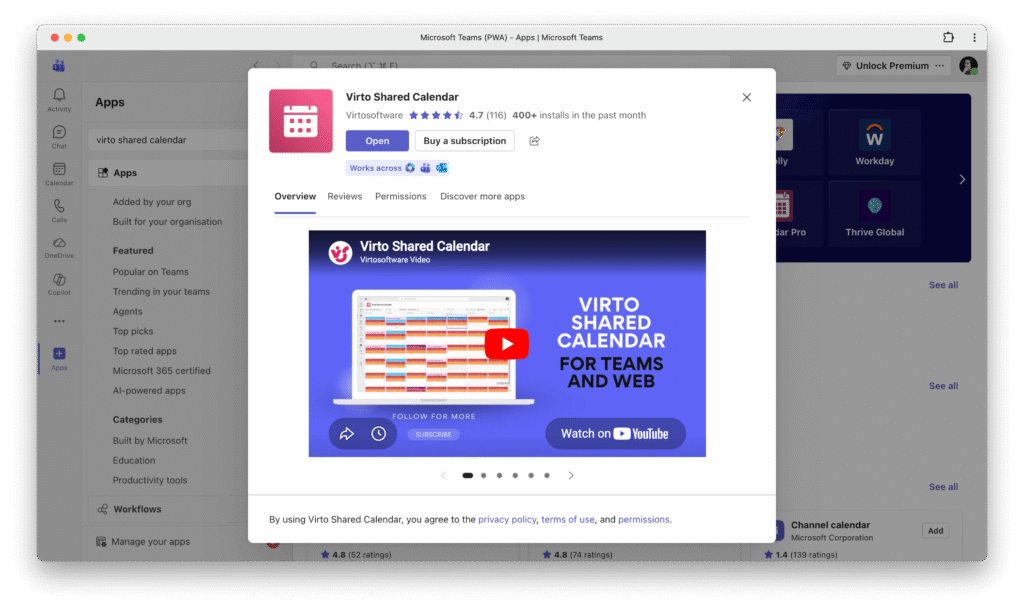
Virto Shared Calendar is available three ways: as a Microsoft Teams app, as an Outlook add-in, and as a standalone web app at teams-calendar.app. You don’t need SharePoint, you don’t need to provision anything in your tenant, and you don’t need an admin. Pick whichever entry point suits your workflow — the data model is the same across all three.
If you live in Teams, install the app from the Teams App Store and pin it to a channel. If you’re an Outlook-first user, the add-in shows up directly in your calendar pane. If you want to share with people outside your organization who don’t use M365 themselves, the web app is the cleanest option.
Step 2 — Create a New Calendar
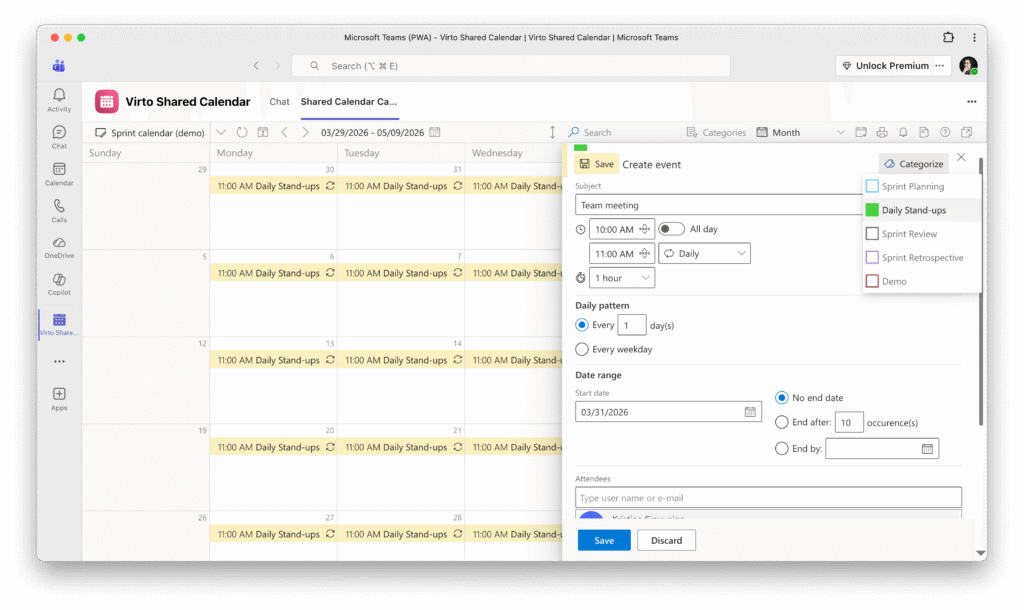
Once installed, create your first calendar. Give it a clear name that signals its purpose to external collaborators — for example, “Acme Client Project,” “Q3 Editorial Calendar,” or “Team PTO.” You can create as many calendars as you need; there’s no limit on the number of calendars per account.
Add events the way you would in any modern scheduler: set a title, time, location, description, and attach the relevant tags or color-coded categories. Tags are especially useful when an external audience will be filtering the calendar — for example, a client can filter “Deliverables” vs. “Internal milestones” with one click.
Step 3 — Generate a Sharing Link
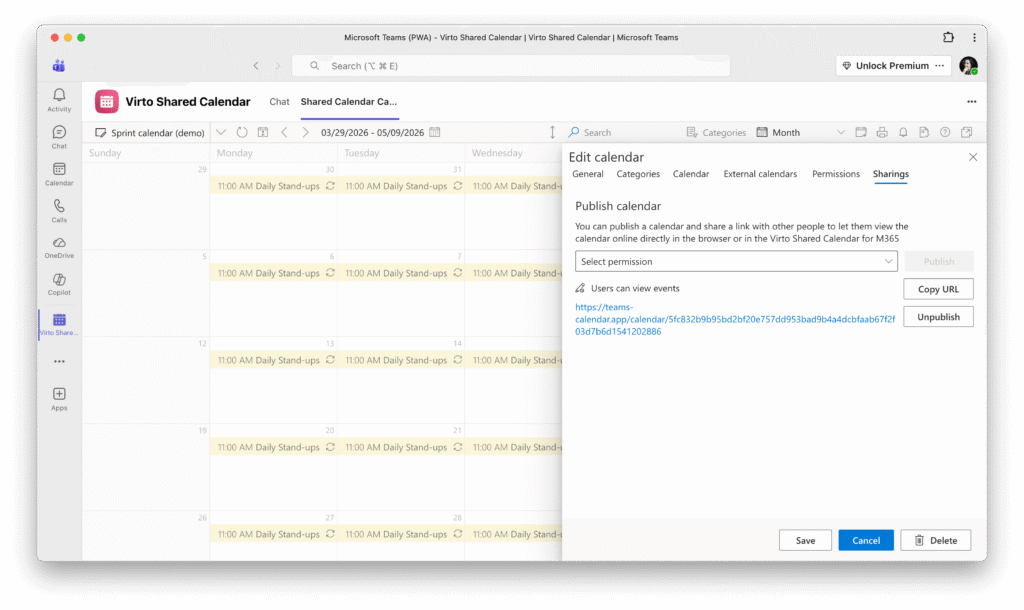
This is the step that makes everything else possible. Open your new calendar, click Sharings, and choose a permission level: Can view all details if your audience just needs to see the schedule, or Can edit if you want them to add or modify events themselves. Copy the generated link.
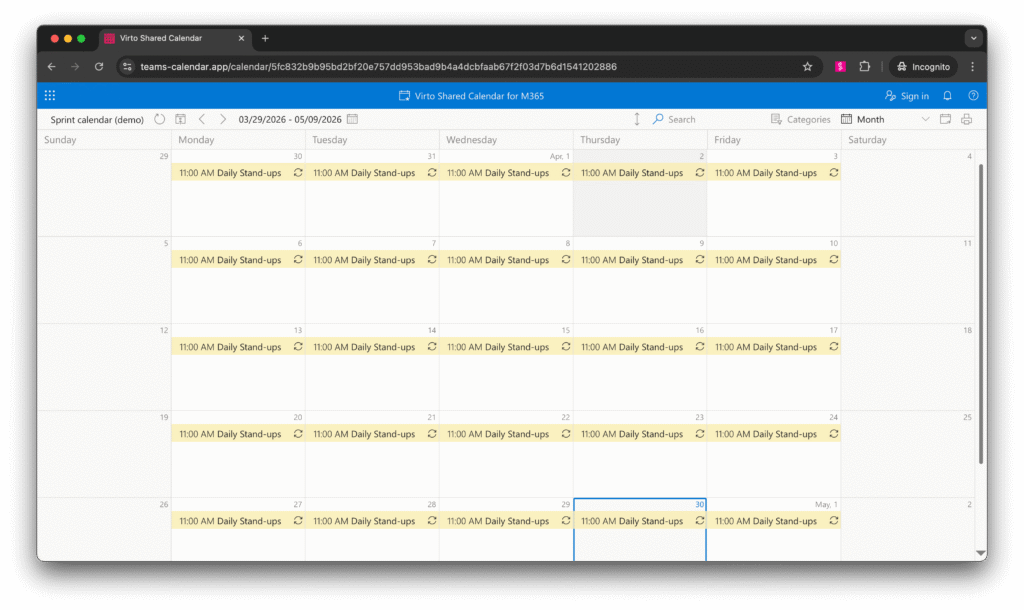
The key point: this link is not tied to a Microsoft account. There is no account on the receiving end. Anyone who opens it gets the calendar in their browser. You’re not sending an invite that asks the recipient to sign in or create an account — you’re sending a URL.
Step 4 — Share the Link with External Users
Drop the link into an email, a Slack message, a project management tool, a client portal, or even a public web page. Recipients click and see the calendar immediately, in any browser, on any device. No download. No sign-in. No “this content requires a Microsoft 365 account” wall.
This is the moment most teams realize how much friction they were absorbing. Sending a calendar to a client used to be a multi-step negotiation: do they have M365? Should we set up guest access? Will IT approve it? Now it’s a link in an email.
Step 5 — Manage Permissions and Visibility
You stay in control. As the calendar owner, you can switch a link from view-only to editable, revoke access by disabling the link, or rotate the link if you ever need to. You can run multiple calendars with different sharing settings — for instance, an internal-only calendar for your team, a view-only calendar shared with a client, and an editable calendar shared with a vendor. Each one has its own permissions and its own audience.
If a client engagement ends, disabling the link is a single click. There’s no Azure AD cleanup, no guest deprovisioning, no audit trail to chase.
Step 6 — Cross-Tenant Sharing in Teams
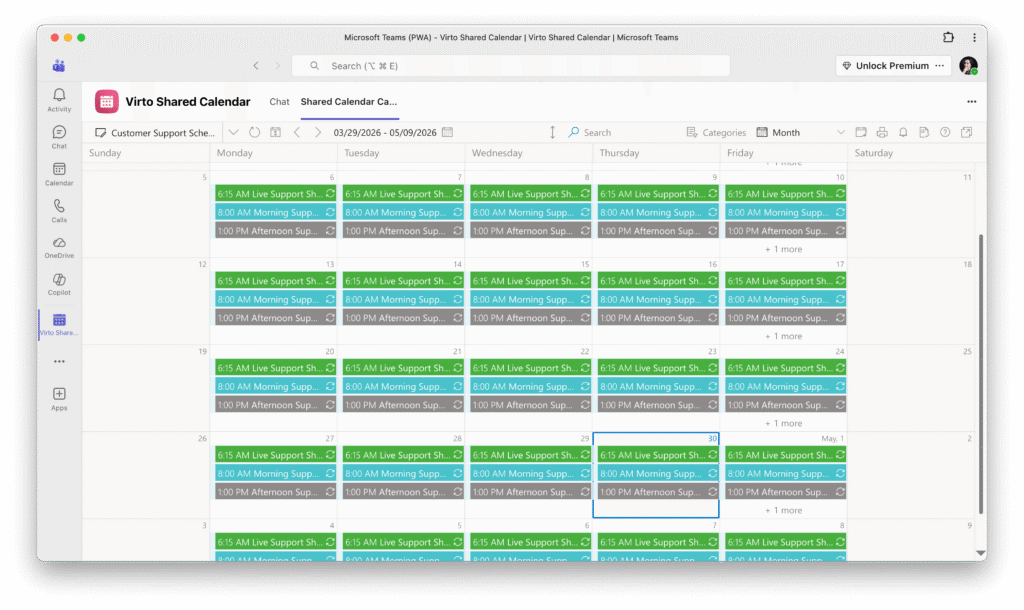
If your external collaborators happen to be on Microsoft Teams themselves — but in a different tenant — Virto Shared Calendar handles this without federation. Publish the calendar link, and the recipient adds it as a tab inside their own Teams environment. They see the calendar live, in Teams, with no admin configuration required on either side. This is one of the cleanest cross-tenant collaboration paths in the M365 ecosystem.
| Free forever for up to 15 calendar entries per calendar. Viewers never need a license. |
Real-World Use Cases for Anonymous Calendar Sharing
The “share without an account” feature isn’t a niche use case — it’s a fit for any team that works across organizational boundaries. Here are five scenarios where customers use Virto Shared Calendar today.
Agencies sharing campaign calendars with clients.
A marketing agency runs a content calendar in Virto, lists every blog post, social drop, and ad launch, and shares a read-only link with the client. The client sees what’s coming this week without needing an M365 license. When something slips, the agency updates the calendar; the client sees the change in real time.
Consulting firms sharing project timelines.
A consultant creates a milestone calendar for a six-month engagement and shares an editable link with the client team. Both sides add scheduled reviews, dependencies, and external deadlines to the same calendar. There’s no “send me the latest version” thread. The shared calendar is the version.
Schools sharing event calendars with parents.
A school publishes a public events calendar — sports days, parent-teacher conferences, term breaks — and embeds the link on its website and in parent newsletters. Parents open it on their phone, no app, no login. When the schedule changes, parents see it instantly.
Multi-vendor project coordination.
A construction project with five vendors, each on different email systems, needs one calendar that shows every delivery, inspection, and milestone. One Virto calendar with a shared editable link replaces five separate spreadsheets and three email chains.
Cross-tenant collaboration after M&A.
Two recently merged companies have separate M365 tenants. Tenant consolidation is going to take months. In the meantime, leadership shares a Virto calendar that bridges both organizations — every all-hands, integration meeting, and town hall sits in one place, accessible to both tenants without federation.
In each case, the common thread is the same: the calendar should be available to everyone who needs it, regardless of which email provider they use or what licenses their employer pays for.
Virto Shared Calendar vs Native M365 Sharing
Side by side, the gap is clear.
Table 2. Virto Shared Calendar vs M365 Native Sharing
| Feature | M365 Native Sharing | Virto Shared Calendar |
|---|---|---|
| Share with external M365 users | Yes | Yes |
| Share with non-M365 users | Partial (ICS read-only) | Yes — full interactive view |
| Anonymous access (no login) | No | Yes |
| External users can edit | No | Yes — if granted permission |
| Cross-tenant without federation | No | Yes |
| Works in Teams, Outlook, Web | Teams (guest only) | Yes — all three natively |
| Admin setup required | Yes — guest policies, Azure AD | No |
| Real-time sync | Partial (3+ hour ICS delay) | Yes |
| Free tier | — | Yes — 15 entries, unlimited viewers |
Native M365 sharing was designed for internal use — colleagues in the same tenant collaborating on the same projects. Virto Shared Calendar is designed for the seam between organizations: clients, vendors, partners, contractors, parents, students, and anyone else who shouldn’t need a corporate identity to see your schedule.
Pricing — Who Needs a License?
The pricing model is built around one principle: people who view your calendar should never have to pay for it.
Viewers never need a license. Anyone accessing your calendar via a shared link is free, forever. This is the single biggest difference from license-based sharing models.
● Free tier. Up to 15 calendar entries per calendar, no time limit. Unlimited calendars. Unlimited viewers. Use it indefinitely as long as you stay under the entry limit per calendar — perfect for sharing a focused project calendar or a public events feed.
● Team Plan — $99/year. Unlimited entries and unlimited users on a flat rate. Best for small teams who want predictable pricing.
● Per-User Plan — $19/user/year. Only the people who create or edit calendars pay. Viewers stay free, no matter how many of them there are. This is the model most agencies and consultancies pick because it scales cleanly with their internal team, not their client roster.
Table 3. Pricing overview
| Plan | Price | Best for |
|---|---|---|
| Free | $0 | Up to 15 entries per calendar; unlimited viewers |
| Team | $99/year | Small teams; unlimited entries and users |
| Per-User | $19/user/year | Pay only for editors; viewers free |
Frequently Asked Questions
Q: Can I share a Microsoft 365 calendar with someone who doesn’t have a Microsoft account?
Native M365 calendar sharing requires recipients to have a Microsoft or Exchange account for interactive access. You can publish an ICS link for read-only access, but it has a three-or-more-hour sync delay and no editing capability. Virto Shared Calendar allows sharing via a link that anyone can open — no Microsoft account or any account required.
Q: Is there a free shared calendar that supports anonymous access?
Yes. Virto Shared Calendar is free for up to 15 entries per calendar. It supports anonymous link sharing, where viewers don’t need any account or license. The free tier has no time limit.
Q: How do I share a calendar between different Microsoft 365 tenants?
Native cross-tenant sharing requires Azure AD federation or guest account configuration. Virto Shared Calendar lets you share across tenants by simply publishing a link — recipients in any tenant can add it to their Teams environment without federation or admin setup.
Q: Can external users edit a shared calendar?
Not with native M365 sharing. Virto Shared Calendar lets calendar owners grant edit permissions to link recipients, so external users can add and modify events when given that level of access.
Q: Does Virto Shared Calendar work outside Microsoft Teams?
Yes. It’s available as a Teams app, an Outlook add-in, and a standalone web application at teams-calendar.app. Shared calendar links work in any web browser on any device.
Conclusion
Microsoft 365 calendar sharing was built for internal collaboration, and inside a single tenant it works well. The moment a client, vendor, school parent, or partner enters the picture, the model breaks down — and the workarounds (ICS feeds, guest accounts, switching to Google) all carry costs.
Virto Shared Calendar removes the barrier directly: one link, anyone can open it, no login, no Microsoft account, no admin involvement. It works in Teams, Outlook, and the web, it scales across tenants without federation, and viewers never pay.
Start free — up to 15 entries per calendar, unlimited viewers, no credit card. See Virto Shared Calendar pricing if you need unlimited entries or enterprise support.