Introduction
When you start using retention policies in Microsoft 365, one of the first surprises many admins encounter is the sudden appearance of a mysterious Preservation Hold Library in SharePoint sites and OneDrive accounts. This hidden library sparks immediate questions and concerns—especially around unexpected storage spikes or frustrating attempts to delete files that just won’t go away.
A Preservation Hold Library is automatically created in SharePoint and OneDrive whenever retention policies or legal holds are applied to content there. It works by silently preserving copies of deleted or edited files, protecting your data from accidental or intentional removal to ensure compliance during audits or investigations. When items are changed or removed, SharePoint uses a copy‑on‑write process to store earlier versions in the Preservation Hold Library—behavior that can noticeably increase storage consumption over time.
This article is written for Microsoft 365, SharePoint, and OneDrive administrators who need to understand why certain files refuse to delete and why site storage may suddenly appear to grow without explanation. These issues often surface during cleanup operations, migrations, or user requests to free space—making it crucial to know exactly what’s happening behind the scenes and how to deal with it safely.
In this article, you’ll learn exactly how the Preservation Hold Library functions in both SharePoint and OneDrive, where to find the files it’s safeguarding, and how to manage its capacity safely without breaking corporate security policies. We’ll also share tips and recommendations for supporting tools within the Microsoft 365 ecosystem that can help you optimize file lifecycle management around this compliance feature.
What is a Preservation Hold Library and Why is it Necessary?
In this section, we will explore what a Preservation Hold Library is, how it works behind the scenes, and why Microsoft 365 relies on it for compliance.
The Preservation Hold Library serves as Microsoft 365’s built-in safeguard for compliance, stepping in whenever retention policies, retention labels, or legal holds are active on SharePoint sites or OneDrive accounts.
What is a Preservation Hold Library?
A Preservation Hold Library is a special, hidden storage automatically created in SharePoint sites and OneDrive accounts where original versions of files are copied if they are modified or deleted while a retention policy is active. Retention policies act as rules in Microsoft 365 that require the system to retain documents for a specific period, even if users attempt to delete them.
👉 For full details on how retention policies apply to SharePoint and OneDrive, see Microsoft’s official guide: Learn about retention for SharePoint and OneDrive.
When such a policy is in place and a user deletes or edits a covered file, the system does not permanently destroy it—instead, it preserves a copy in this dedicated library to meet legal, regulatory, or internal compliance needs. Unlike the Recycle Bin, which holds items for only 93 days and is user-accessible, or standard backups that focus on disaster recovery, the Preservation Hold Library specifically safeguards content for governance purposes, ensuring it’s available for eDiscovery, audits, or holds.
This mechanism operates identically in both SharePoint and OneDrive: delete a file from your personal OneDrive under a retention policy, and its copy lands in the OneDrive Preservation Hold Library. Importantly, the library captures all versions of documents subject to the policy since its activation, maintaining a complete historical record.
When a Preservation Hold Library is Created
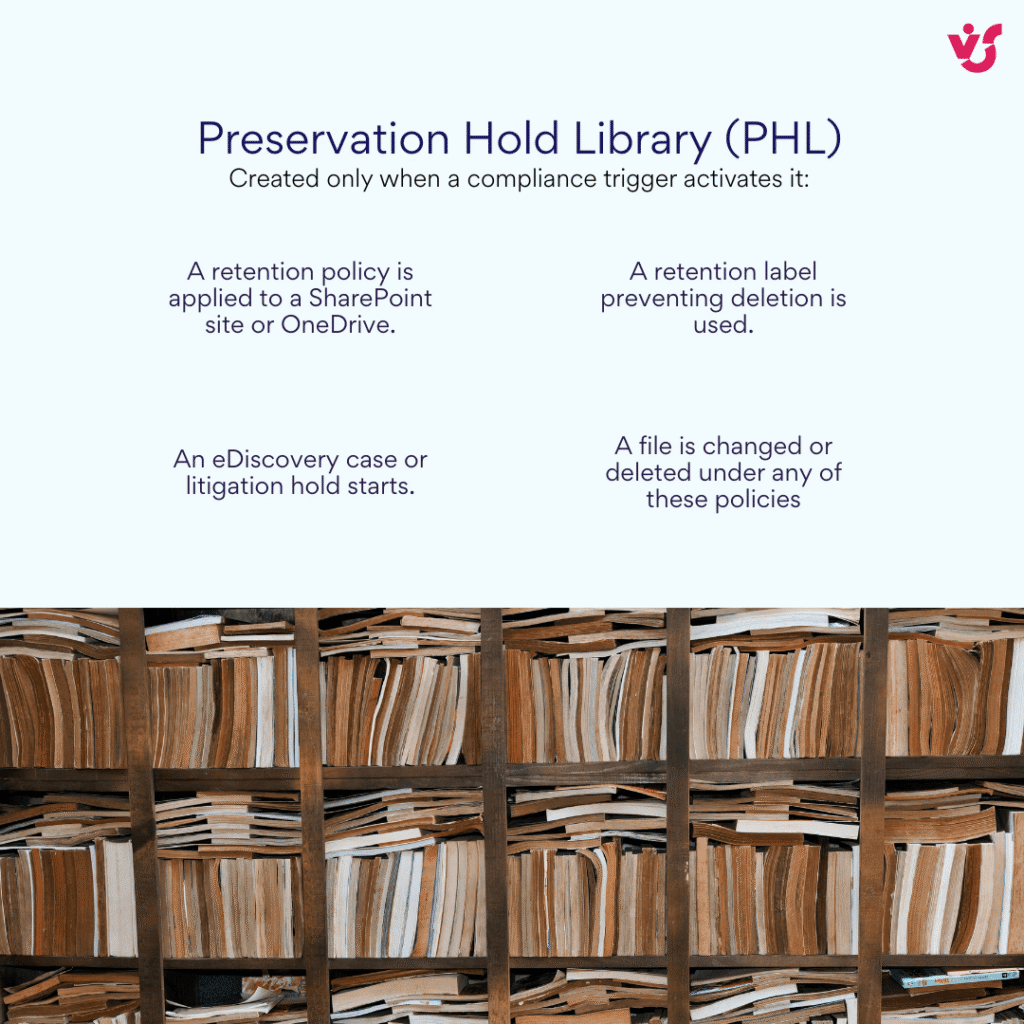
A Preservation Hold Library does not exist until a specific compliance trigger activates it. Here are the key situations:
- When a retention policy is first enabled and applied to a SharePoint site or OneDrive.
- When a retention label prohibiting deletion is applied to files or folders.
- When an eDiscovery case or litigation hold is initiated on the site or user content.
- When files are actually modified or deleted while any of the above policies are in effect—this is the moment the library gets populated and becomes visible in storage metrics.
Microsoft creates the library on-demand to avoid unnecessary overhead, but once triggered, it remains until all related policies or holds are lifted.
What is Stored in a Preservation Hold Library
The Preservation Hold Library acts as a compliance archive, holding specific types of preserved data that users cannot access or delete through normal means:
- Copies of deleted files and documents that fall under an active retention policy or hold.
- Previous versions of documents if the policy requires version history preservation.
- Snapshots of documents before and after modifications, ensuring the pre-change state remains available.
- Associated metadata, such as who modified the file, timestamps, and version details.
- Any content specifically targeted by a legal hold, regardless of user actions.
To users with access (typically site owners or admins), this appears as a chronological list of files with detailed dates and metadata, reflecting every preservable event since the policy began. The library maintains a tamper-proof historical record, separate from the site’s active document libraries.
How to Find the Preservation Hold Library in SharePoint and OneDrive
The Preservation Hold Library remains hidden from regular users by design, as Microsoft intentionally conceals it to prevent accidental deletion of data critical for legal reviews, audits, or compliance. Only administrators or users with elevated permissions, such as site collection owners, can access it through specific tools and paths.
How to Find the Preservation Hold Library in SharePoint
The SharePoint preservation hold library is created at the level of the specific site where a retention policy applies, ensuring preserved content stays tied to its original context.
To locate it as an administrator, follow these steps:
- Navigate to the SharePoint site and click the gear icon to access Site settings.
- Select Site contents from the left navigation or settings menu.
- To reveal hidden lists, append /Forms/ViewAll.aspx?IncludeHidden=true to the Site Contents URL (e.g., https://yourtenant.sharepoint.com/sites/yoursite/_layouts/15/viewlsts.aspx?IncludeHidden=true), or use the browser’s “Show hidden items” filter if available.
- Scroll to find the Preservation Hold Library in the list of site contents.
For direct access, use this URL pattern for any SharePoint site: https://yourtenant.sharepoint.com/sites/yoursite/PreservationHoldLibrary/Forms/AllItems.aspx.
Additionally, check active retention policies via the Microsoft 365 admin center under Compliance > Data lifecycle management > Retention policies, or use PowerShell cmdlets like Get-PnPTenantSite and Get-PnPRetentionLabel to verify policy status and holds on the site. This helps confirm why the library exists before diving in.
How to Find the Preservation Hold Library in OneDrive
The library is hidden from end users for security reasons but accessible to admins via admin tools and direct URLs.
Unlike regular OneDrive folders, this library is not visible in the standard user interface, File Explorer, or web access—it’s hidden to prevent tampering. Only global admins or users with appropriate permissions can access it.
To locate it as an administrator, follow these steps:
- In the Microsoft 365 admin center, go to Users > Active users, select the user, and click OneDrive under the account tab (or directly via Manage OneDrive).
- This opens the user’s OneDrive site; click the gear icon for Site contents.
- Reveal hidden lists by appending
/Forms/ViewAll.aspx?IncludeHidden=trueto the Site Contents URL, or filter to show hidden items. - Locate the Preservation Hold Library in the list.
For verification, use PowerShell cmdlets like Get-SPOSite -Identity <user's OneDrive URL>to check applied retention policies and hold status, confirming the triggers for the library’s creation.
This matches real admin experiences, like in this Microsoft Q&A thread on a user’s terabyte-sized OneDrive Preservation Hold Library: Preservation Hold Library in User’s OneDrive.
What is a Preservation Hold Library in OneDrive?
The library operates on the same principle as in SharePoint, since OneDrive is built on the SharePoint infrastructure. Its data protection mechanism completely mirrors SharePoint’s logic: it preserves copies of modified or deleted files under retention policies or holds, ensuring compliance without user interference.
File Management in the Preservation Hold Library: Restoration, Deletion, and Administration
Files in the Preservation Hold Library are protected by design—you cannot delete them directly while a retention policy or hold remains active. This security mechanism prevents accidental or intentional destruction of data needed for audits, eDiscovery, or litigation, treating the library as a compliance safeguard rather than everyday storage.
How to Restore Files from the Preservation Hold Library
Restoration from the Preservation Hold Library is a manual recovery process, not a full system restore. If you have administrator rights, access the library using the steps outlined earlier, locate the required file version, then download or copy it manually to the active SharePoint or OneDrive location.
Recovered files are returned as standalone copies—original metadata, version history, and folder context may not be fully restored. This ensures data preservation for compliance but limits automation and fidelity when recreating content as it previously existed. The preserved copy remains in the library until the retention period expires naturally, and standard users cannot access it directly.
How to Remove Files in a Preservation Hold Library
Direct deletion requires first removing the retention hold or policy covering those files. You have two main options: wait for the retention period to expire (when Microsoft automatically purges the data), or ask your administrator to edit the policy and exclude specific documents or sites.
Premature deletion risks violating corporate or legal requirements, so proceed only after confirming compliance. In rare cases like resolved legal disputes, admins may force cleanup after lifting all holds.
Before changing retention settings
Before modifying or removing any retention configuration, administrators should verify all active controls currently applied to the content. Check for:
- Active Retention Policies configured in Microsoft Purview
- Retention Labels assigned at library, folder, or item level
- Any eDiscovery or Litigation Holds that may override policy changes
- The scope of each policy—whether it targets a single site, user, or the entire tenant
Confirming these dependencies helps avoid compliance gaps or unintentional data loss when adjusting retention or hold configurations.
How to Remove Preservation Hold
Holds and retention policies must be managed through the Microsoft Purview portal, requiring Compliance Admin privileges—not directly in SharePoint or OneDrive.
Follow these steps:
- Go to Microsoft Purview (compliance.microsoft.com).
- Navigate to Data lifecycle management > Retention policies or eDiscovery > Holds.
- Edit the policy: shorten durations, exclude sites/users/documents, or disable it entirely.
Changes propagate automatically, allowing eventual cleanup once no protections remain.
How do I Delete Preservation Hold Library in PowerShell?
Do not attempt to delete the library itself via PowerShell—Microsoft blocks this while policies are active, as it’s a system-managed component.
This challenge is echoed in community discussions, such as this active Reddit thread where admins troubleshoot deleting files from preservation hold libraries: Reddit: Delete files in preservation hold library.
Instead, use PowerShell for safe administration:
- Check policies:
Get-RetentionCompliancePolicyorGet-PnPTenantSite. - Verify holds:
Get-eDiscoveryCase. - Bulk-manage settings across sites or users.
Always lift or modify the retention policy first through Purview, then run cleanup scripts if needed—the library vanishes automatically when empty and unneeded.
Space and Storage Management
Does preservation hold library count against storage?
Yes, all data in the Preservation Hold Library counts fully against your SharePoint site or OneDrive storage quota, just like regular files.
How Preservation Hold Library Impacts Storage
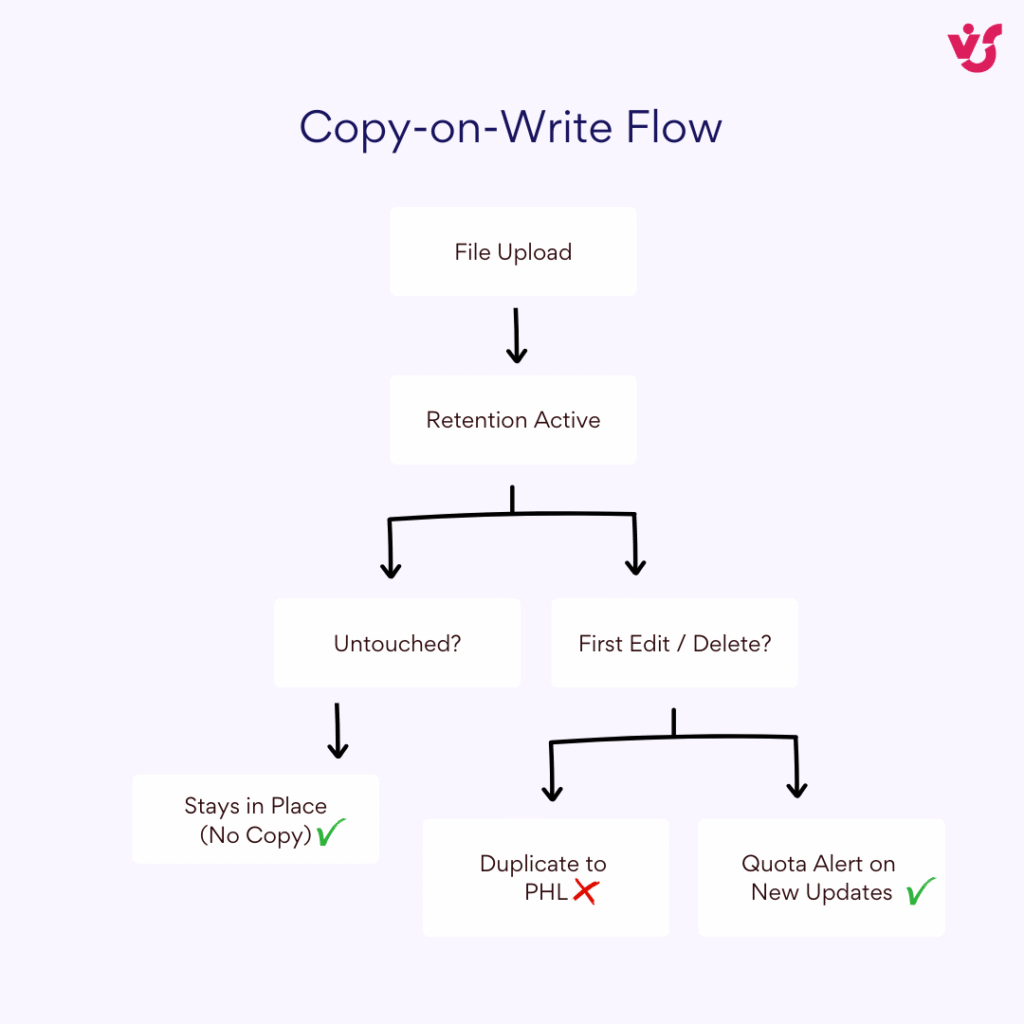
When a retention policy activates, SharePoint and OneDrive save copies of every deleted or modified file into the library—each version counted separately. For example, a 100 MB file edited 10 times under retention could consume 1 GB in the library alone, explaining sudden “full” alerts despite clean recycle bins.
This “unnoticeable” growth accelerates with frequent edits to large files like videos, CAD drawings, or PowerPoint decks. Active changes spawn multiple versions per file, each copied to the library upon modification; new uploads then fail when quotas hit limits.
Microsoft uses a “copy-on-write” optimization: untouched files under retention stay in place without duplication. Copies appear only on the first edit or deletion.
What to Do When Space Runs Low
If storage nears capacity:
- Review retention policies with admins to shorten durations or reduce version history.
- Request a quota increase via Microsoft 365 admin center.
- Use analysis tools for cleanup—but only after legal/compliance approval.
Practical Recommendations for Optimization
- Audit active retention policies in Microsoft Purview to identify long-tail consumers.
- Check site/OneDrive reports for blocked users or sites nearing limits.
- Set retention periods to match real business/legal needs, removing outdated policies.
- Monitor continuously via Microsoft 365 admin center storage reports, especially with long holds or heavy editing workflows.
- Forecast capacity based on policy lengths, file edit patterns, and Preservation Hold Library growth trends.
Common Admin Mistakes
Even experienced administrators can run into issues when managing Preservation Hold Libraries. Typical mistakes include:
- Trying to manually delete the Preservation Hold Library instead of allowing it to clear automatically when policies expire
- Attempting to clean up preserved content while a retention policy or hold is still active
- Confusing the Recycle Bin with the Preservation Hold Library, assuming deleted items are fully removed
- Trying to fix storage growth by deleting files without first reviewing active retention or compliance settings
Streamlining SharePoint and OneDrive Administration with Virto Multiple Operations App
Admins often need to:
- Clean up content after retention policies expire
- Move large sets of files efficiently
- Manage overgrown libraries without hitting SharePoint’s 5,000‑item threshold
These tasks can become slow and error‑prone when working within native interfaces—especially if the Preservation Hold Library has accumulated thousands of preserved items over time.
Virto Multiple Operations App for SharePoint Online & Microsoft 365 helps by enabling secure bulk operations directly from a visual interface. It simplifies content management, supports large datasets, and reduces reliance on complex PowerShell scripts.
Key capabilities include:
- Bulk copy, move, and delete actions with metadata preservation
- Handling files beyond SharePoint’s threshold limits
- Version control adjustments to help manage storage growth
- A user‑friendly interface built for everyday administration
Together, these features make it easier to maintain SharePoint and OneDrive environments affected by retention policies or Preservation Hold Libraries—keeping storage under control and compliance intact.
When Should Administrators Worry about Preservation Hold Library?
You should start investigating the Preservation Hold Library if your site storage begins growing rapidly or usage reports show an unusual increase in file versions. This often happens when retention policies are applied to heavily used, collaborative SharePoint sites where documents change frequently. In such environments, the copy‑on‑write behavior can accumulate a large volume of preserved content, significantly impacting available storage capacity.
Conclusion
The Preservation Hold Library plays a crucial role as Microsoft 365’s built-in security mechanism, safeguarding data integrity to meet legal, regulatory, and compliance requirements during audits, eDiscovery, or holds. Rather than a simple storage overflow area, it ensures tamper-proof preservation of deleted or modified files in both SharePoint preservation hold library and OneDrive preservation hold library contexts.
Understanding how retention policies trigger and populate this library is key to effective management—configure realistic periods, apply labels thoughtfully, and audit regularly to prevent unexpected storage growth.
Complement native tools with solutions like the Virto Multiple Operations App to bypass limitations, handle bulk operations safely, and optimize your SharePoint and OneDrive workflows, keeping your Microsoft 365 environment compliant and efficient.