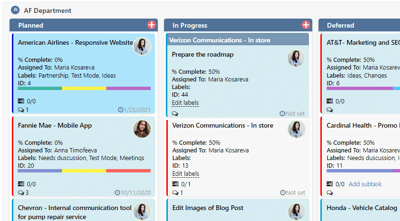
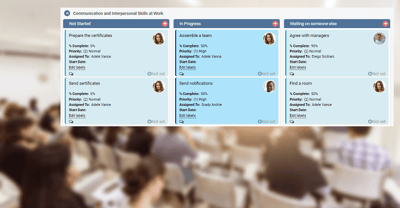
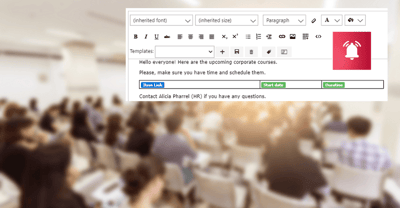
Kanban Board Pro for Microsoft 365 and Microsoft Teams allows users to track any changes on the board using Alerts and Reminders app. For example, you can enable the alert when a task has been assigned to a user, so they receive an email alert with a link to the task. Then the user clicks on a link in an email to open the task.

Imagine that you have a Kanban board with various training courses for the staff. When the team completes one of the courses, the person in charge moves the corresponding card to the “Completed” column. It would be perfect to congratulate the team on such an occasion and send an automatic alert.

It is easy to notify the board members about changes on the board. All you need is to create a new alert with appropriate rules.

But what if we want to send this notification to the Teams channel, not only via email? Let’s see how to set it up.
Microsoft Teams
You will need to use Alerts and Reminders by Virto app to send alerts about completed courses directly to the Teams channel. And the trigger for sending would be moving the card to the “Completed” column on the Virto Kanban board.
To set up notifications, you will need three apps:
Step 1
First, create a webhook workflow in the Teams channel where you’d like to see an alert.
The Incoming Webhook connector is gone — use Workflows. Office 365 connectors in Microsoft Teams, the Incoming Webhook among them, were switched off by Microsoft in 2026: the deprecation rollout started on 18 May 2026 and completed on 22 May 2026 (Microsoft 365 Developer Blog, update of 14 April 2026). The replacement is the Workflows app, built on Power Automate, and the steps below use it. Our guide to Office 365 connectors covers the retirement in detail.
Hover over the channel name, click “More options (…),” and select “Workflows.”
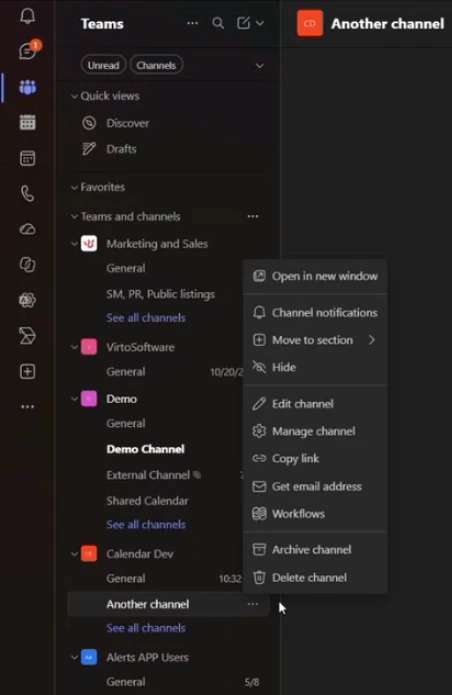
Find the “Send webhook alerts to a channel” template and select it.
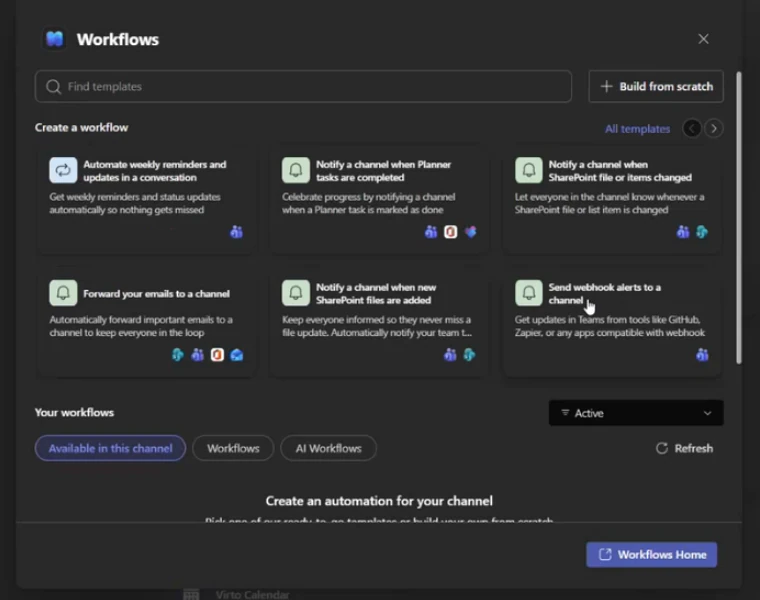
Check that the right team and channel are selected, then click “Save.” Once you see the “Workflow created” message, click “Copy webhook link.” Treat that link like a password: anybody who has it can post messages to your channel.
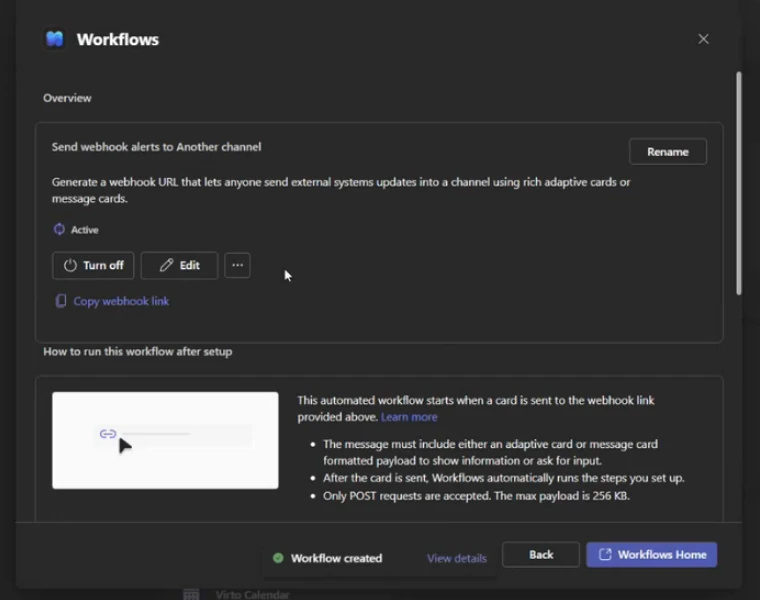
Note: you can find detailed instructions on creating an alert that posts to Microsoft Teams in this article: Virto SharePoint Alerts and Reminders: How to Connect Alerts from SharePoint to Teams?
Step 2
Open Alerts and Reminders by Virto app page and create a new notification. In this step, please pay attention to the following:
- You should use the workflow you created: paste the copied webhook link into the “MS Teams Workflow URL” field of the “Recipients” section. The hint under the field says “Microsoft Teams Workflow URL (Send webhook alerts to a channel)” — that is the template you used in Step 1.
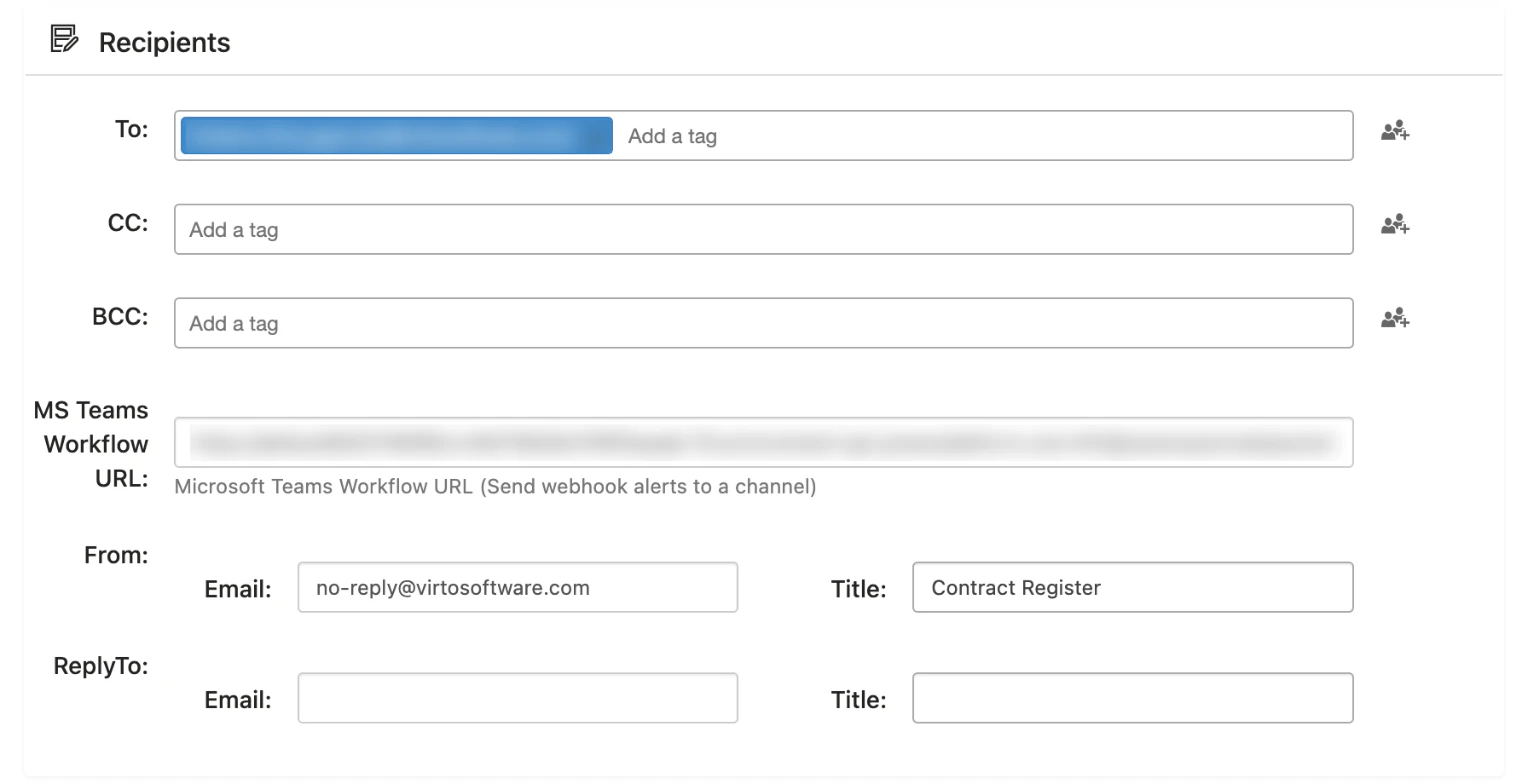
The alert goes to the channel the workflow belongs to. To reach a second channel, create a second workflow and a second alert — the app posts to channels, not to people in a one-to-one chat.
Note: remember to change the default “From” and “ReplyTo” fields. Ensure you have typed your company’s address, not the sample one.
- Select the SharePoint list related to your Kanban board — Staff training, in our case.

3) Then, define a condition for the future alert: the task status equals “Completed.”

Step 3
Then save your notification. Now it’s time to check how it works! First, open the Kanban board with the training courses and move a “4| Emotional intelligence workshop” card to the “Completed” column.

The alert is immediately sent via email.

And the same message appears in Teams channel.

This way, in just three steps, you create intelligent automatic alerts with the conditions you wish. Your colleagues are notified in Microsoft Teams and do not need to open additional apps or browser tabs to see the message.
The Virto M365 Productivity Kit includes Kanban Board Pro for Microsoft 365 and Alerts and Reminders. So you can get one license and access a group of Virto apps for Microsoft 365, including the ones described above.