Meeting rooms in Microsoft 365 are bookable through Outlook, but visibility on a SharePoint intranet page is limited. The native Events web part and the modern Lists calendar view don’t pull from Exchange room mailboxes — so even when bookings exist in Outlook, they don’t surface on the SharePoint pages where employees actually plan their day. This guide shows how to display real-time meeting room availability in SharePoint Online by connecting Exchange room mailboxes to Virto Calendar App, with floor-by-floor views, color-coding, and direct booking from the calendar.
| Quick answer: SharePoint has no native web part to display meeting room availability — the Events web part can’t read Exchange room mailboxes. To show room availability on a SharePoint page, install the Virto Calendar App, add Exchange resource mailboxes as data sources, and color-code by floor or building. Users see live room availability and can click to book. |
How Meeting Room Calendars Work in Microsoft 365
In Microsoft 365, every bookable room is an Exchange resource mailbox — a special type of mailbox tied to a physical space. When someone invites a room to a meeting in Outlook, the room mailbox processes the request and either accepts or declines based on conflicts. Room mailboxes are configured by IT in the Exchange admin center and grouped into room lists (typically one room list per floor or building) so they appear in Outlook’s Room Finder.
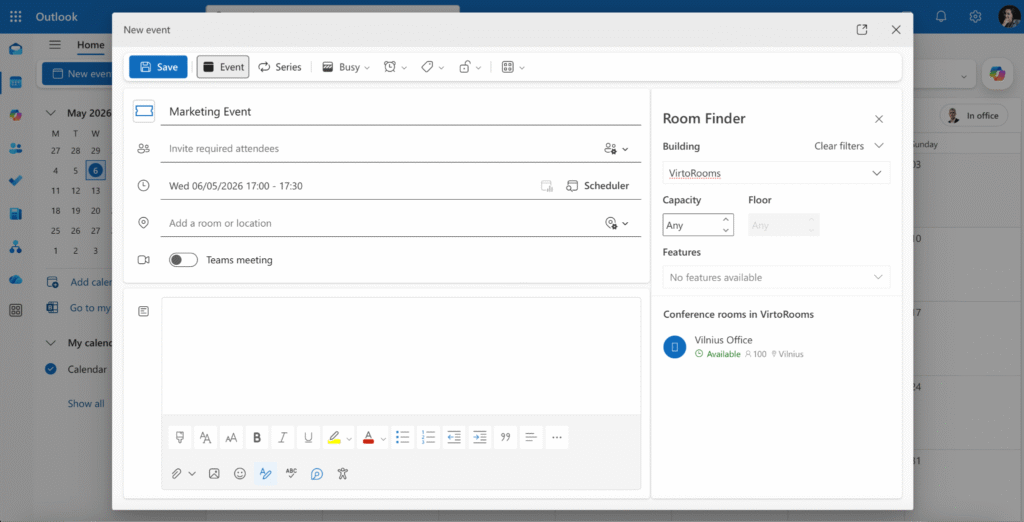
This is the booking layer. It works well inside Outlook and the Outlook web app: an organizer types a room name, sees live availability via Scheduling Assistant, and books it as part of a meeting invite. The data lives entirely in Exchange. The piece that’s missing is the visibility layer — surfacing those room schedules on a SharePoint page everyone in the building looks at, so people can spot a free room, see who’s in conference room A this afternoon, or filter to all rooms on the third floor without opening Outlook first.
The SharePoint Problem — No Native Room Calendar View
SharePoint Online doesn’t ship with a way to display Exchange room mailboxes on a page. Specifically:
- The Events web part on modern SharePoint only reads from a SharePoint Events list — not Exchange room mailboxes. There’s no connector to point it at a room calendar.
- The modern Lists calendar view is a per-list view. Even if you mirrored room data into a SharePoint list (and kept it in sync), one view can show one list, not multiple rooms across floors.
- The classic Calendars Overlay feature could overlay Exchange calendars on a classic SharePoint calendar app, but it’s capped at ten overlays, requires a classic site, and doesn’t render on modern pages.
- Embedding Outlook’s web app in a page iframe doesn’t give you per-page floor filtering, color-coding, or a unified view across multiple rooms.
For most teams the result is a workaround pile: a SharePoint page with a list of room names that links out to individual Outlook calendars, or a static floor map screenshot, or a manually maintained list that’s always stale. None of these solves the underlying need — a single SharePoint page that shows live room availability across the office, color-coded by floor, with click-to-book.
How to Display Room Availability in SharePoint with Virto Calendar App
Virto Calendar App fills the visibility gap. It’s a SharePoint web part (also available in Microsoft Teams) that connects directly to Exchange room mailboxes and renders them on any modern page, with per-source color-coding and an unlimited number of rooms in one view. The setup below assumes your IT team has already configured room mailboxes and room lists in the Exchange admin center.
Step 1 — Confirm Exchange room mailboxes are configured
Open the Exchange admin center → Recipients → Resources. Each bookable room should appear as a Room mailbox with capacity and location set. If you have multiple floors or buildings, group rooms into room lists (one list per floor) so they’re easy to filter later. If rooms aren’t listed, ask IT to provision them — Virto reads from this layer, so it can’t display rooms that don’t exist there.
Step 2 — Install Virto Calendar App from Microsoft Marketplace
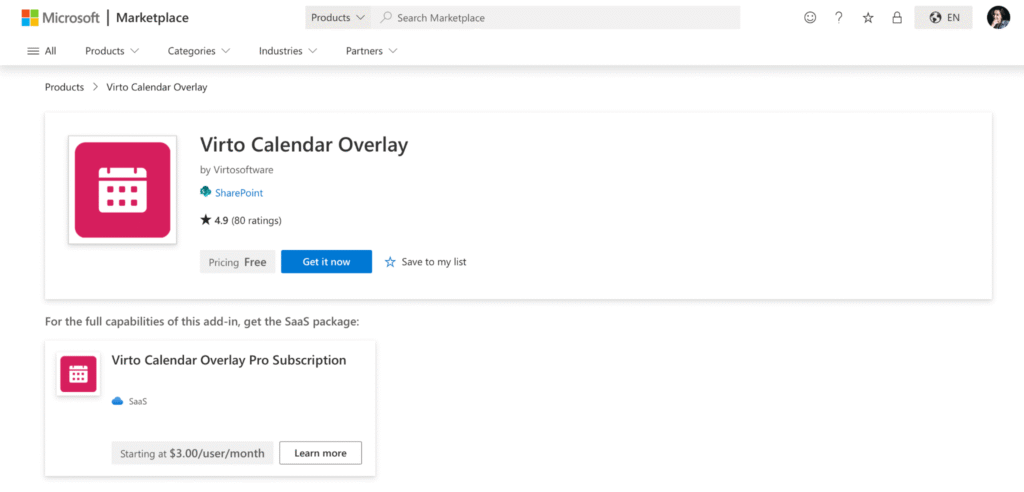
Go to Microsoft Marketplace and install Virto Calendar App to your SharePoint tenant. A SharePoint admin needs to approve the app once; after that, anyone with edit rights on a page can add the web part. Free trial for one month — useful for piloting before rolling out to the whole company.
Stuck with Virto setup?
Our support team is ready to guide you!
Step 3 — Add the Virto Calendar App web part to a SharePoint page
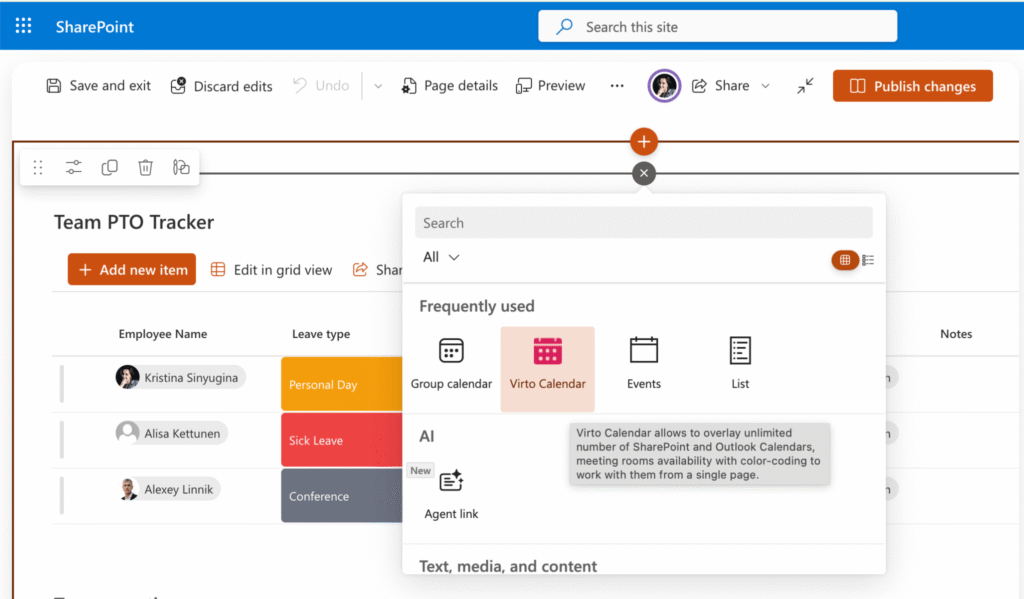
Open or create the SharePoint page where the room calendar should live (a “Room Booking” or “Office” page on the intranet works well). Click Edit, add a new web part, and pick Virto Calendar App from the picker. Save the page once so the web part renders.
Step 4 — Add room mailboxes as data sources
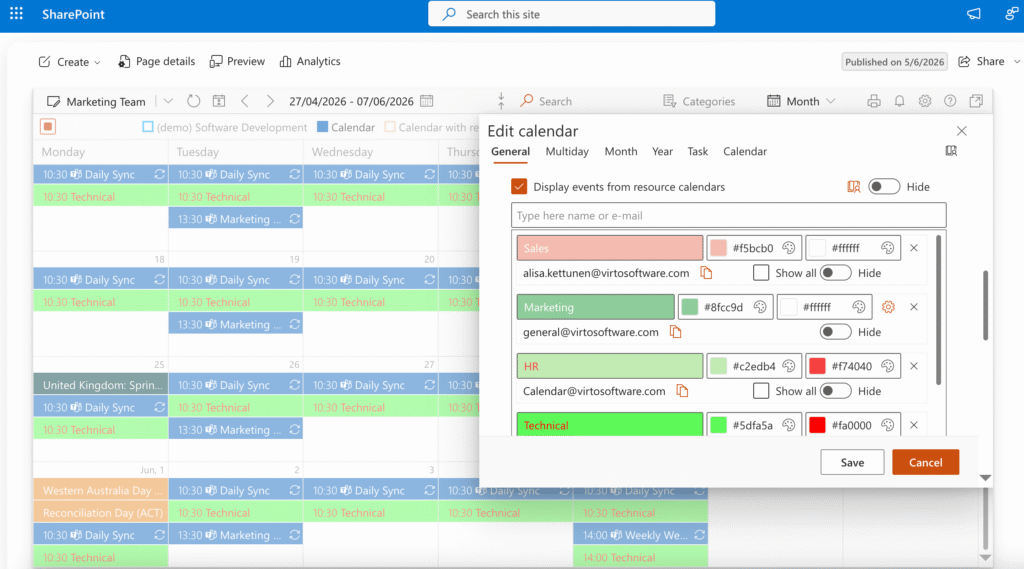
Click the gear icon on the web part to open settings, then add a data source. Go to the Exchange tab as the source type, check the box next to “Display events from resource calendars” and add email of an account that has access to the room calendars. Select the rooms you want to show — pick individual rooms or whole room lists. There’s no cap on how many rooms you can add to a single calendar.
Step 5 — Color-code by floor, building, or room type
In each data source’s settings, open the color picker and assign a color. For multi-floor offices the most useful scheme is one color per floor (Floor 1 = blue, Floor 2 = green, Floor 3 = orange). For larger campuses, color by building. For specialized rooms (boardroom, video room, training room) you can color by room type using the second-level color coding on a category field. Turn on the auto-generated legend so users can decode colors at a glance.
Step 6 — Enable click-to-book and save
In display settings, enable booking from the calendar so users can click an empty slot and create a booking that flows back to Exchange (the room receives the request and accepts based on its policies). Save the web part. The page now shows live room availability across every room you added, color-coded, with direct booking — no Outlook trip required.
| Tip: Place the Virto Calendar App web part on the same SharePoint page as your office floor map and team directory. Users get a one-stop view: where the rooms are, who’s nearby, and which rooms are free right now. |
Use Cases
Three patterns we see most often when teams roll out a SharePoint room booking calendar:
Office with 20+ rooms across 3 floors
Mid-size offices typically have a dozen meeting rooms per floor, plus a handful of phone booths and focus rooms. Surfacing all of them on the intranet homepage (color-coded by floor) lets employees pick a free room without leaving the page they were already on. The same calendar can be embedded in the Microsoft Teams app for remote workers checking room availability before coming in.
Hospital with operating-room scheduling
Operating rooms and procedure rooms are room mailboxes too. A SharePoint page with a Virto Calendar App web part — color-coded by department (cardiology, ortho, ENT) — gives charge nurses and surgical schedulers a real-time view across the whole OR floor without needing a separate scheduling system. Combine with Planner data for case prep tasks tied to each booking.
University with lecture-hall booking
Universities run hundreds of bookable spaces — lecture halls, seminar rooms, labs, study rooms. Each is an Exchange room mailbox. A Virto Calendar App page on the registrar’s SharePoint site, color-coded by building and filtered by capacity, makes it easy for faculty and student groups to find an open room and book it directly. Permissions on the calendar mirror SharePoint, so undergrads only see what they’re allowed to book.
Frequently Asked Questions
Can I display meeting room availability on a SharePoint page?
Not natively. The Events web part on modern SharePoint reads only from SharePoint Events lists, and the Lists calendar view shows one list at a time. To show Exchange room mailboxes on a SharePoint page you need a third-party web part like Virto Calendar App, which connects directly to room calendars in Exchange.
How many rooms can I show on one calendar?
There is no hard cap with Virto Calendar App — you can add as many room mailboxes as you need. For readability, most teams group rooms into views by floor or building rather than displaying every room on a single calendar. Color-coding (one color per floor) keeps a busy calendar legible.
Can users book rooms directly from the SharePoint calendar?
Yes. With booking enabled in Virto Calendar App, clicking an empty slot opens a booking dialog that sends a meeting request to the room mailbox. Exchange handles the acceptance based on the room’s booking policies (auto-accept for rooms with no scheduling conflict, manual approval for rooms requiring a delegate). Users do not need to switch to Outlook.
Do users need additional permissions to see room calendars?
They need read permission on each room mailbox they want to view. Most organizations grant the AvailabilityOnly or Reviewer permission to “Default” on room mailboxes so all employees can see schedules without seeing meeting subjects. The Virto Calendar App web part respects whatever permissions Exchange has — it does not bypass them.
Does this work with Microsoft Teams meeting rooms?
Yes. Microsoft Teams Rooms are still Exchange resource mailboxes under the hood, so they appear in the same room lists and connect to Virto the same way. The calendar will show Teams Rooms alongside traditional rooms in a single color-coded view.
Can I show room availability and booking from a Teams tab instead of SharePoint?
Yes — Virto Calendar App also runs as a Microsoft Teams app. Pin the calendar as a tab in any Team or Channel and the same color-coded room view appears for Teams users. Useful for facilities and IT teams that live in Teams more than on the intranet.
Related Reading
- How to color-code SharePoint calendar events
- How to build a master calendar in SharePoint
- Combine Outlook, SharePoint & Google calendars in one view
- Meeting room management — strategy and best practices
Ready to Surface Room Availability in SharePoint?
| Next step: Install Virto Calendar App from Microsoft Marketplace. For a guided rollout across multiple buildings or with custom permissions, schedule a consultation with our team. |