
Quick answer: To view someone’s Outlook calendar, open Calendar, choose Add calendar → From directory (in New Outlook and OWA) or From Address Book (in classic Outlook), search for the person, and click Add. If you do not have permission yet, Outlook will prompt you to send a Request access message to the calendar owner.
The only M365 enterprise calendar
… that never leaves your cloud. Data stays in your Azure, under your control.
This guide is part of our comprehensive series on Outlook calendar management. For more in-depth information on related topics, we recommend checking out our other articles:
- How to Hide Calendar Details in Outlook and Make It Private
- How to Create a Shared Calendar in Outlook: Step-by-Step Guide
- Outlook Group Calendar: Creation, Management, and Best Practices
- How to Merge Multiple Calendars: Guide to Google & Outlook
- How to Sync Outlook Calendar with Teams
1. Add and open a shared Outlook calendar
If a colleague has already shared their calendar with you, the steps below show how to add it to your own Outlook view on every supported platform. The menus differ noticeably between versions, so check the callout first to make sure you read the right sub-section.
| Which version of Outlook am I using? The right sub-section below depends on which Outlook you have open. Identify it from the window itself: - Classic Outlook for Windows — wide ribbon at the top with Home, Send / Receive, View tabs. Use the ‘Classic Outlook desktop (Windows)’ steps. The ‘From Address Book’ option lives here only. - Outlook for Mac — macOS window controls (red, yellow, green dots) in the top-left and a slim icon rail on the left. Use the ‘Outlook for Mac’ steps. The Add Calendar dropdown will say ‘Add Shared Calendar…’ (no ‘From Address Book’ option). - New Outlook (Windows or Mac) and Outlook on the web — modern UI with no ribbon, a slim icon rail on the left, and Calendar accessed from that rail. Use the ‘New Outlook’ or ‘Outlook on the web (OWA)’ steps — both share the same interface. The flow is Add calendar → Add from directory. - Outlook mobile app (iOS / Android) — phone or tablet UI with a Calendar tab at the bottom. Use the ‘Outlook Mobile’ steps. |
Once you know your version, the table below shows how the four most common actions map across them. Detailed step-by-step instructions per platform follow.
| Action | Classic Outlook (Windows) | New Outlook (2024+) / OWA |
| Add a colleague’s calendar | Home → Add Calendar → From Address Book | Calendar → Add calendar → Add from directory |
| Request access if denied | Send a sharing request from the calendar dialog | ‘Request access’ button appears automatically |
| Check availability | Scheduling Assistant inside a new meeting | Scheduling Assistant inside a new event |
| Manage permissions | Right-click calendar → Sharing Permissions | Settings (gear) → Calendar → Shared calendars |
New Outlook (web and desktop, 2024+)
New Outlook on Windows and Mac shares the same interface as Outlook on the web.
- Open Calendar from the left navigation bar.
- Under My calendars, click Add calendar.
- Select Add from directory.
- Pick the right account if prompted, then type the colleague’s name or email and choose them from the list.
- Choose where to add the calendar (for example, People’s calendars), then click Add.
- The calendar appears in the People’s calendars group in the left pane. Click the name to toggle it on or off.
If the Add button is replaced with Request access, you do not have permission yet. See the next section.
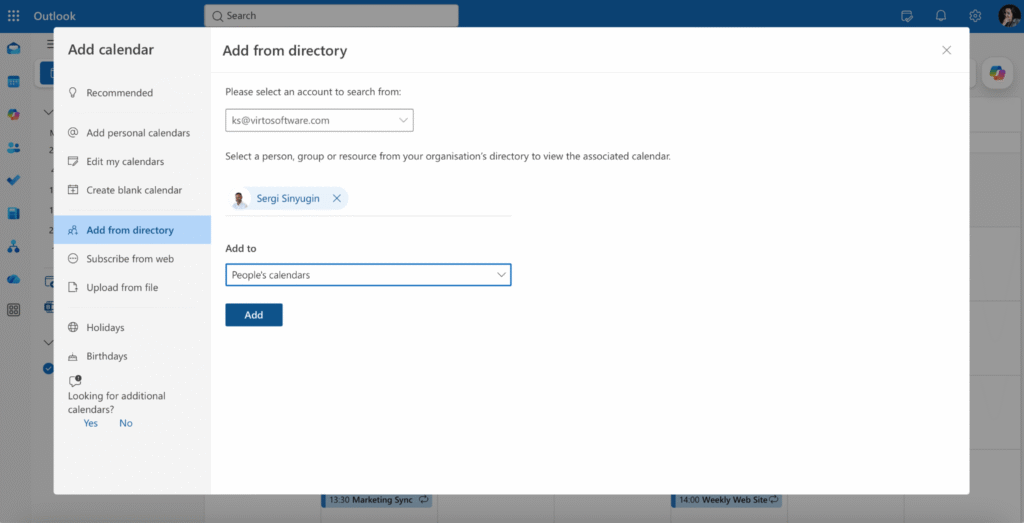
Pic. 1. Adding a colleague’s calendar from the directory in New Outlook.
Classic Outlook desktop (Windows)
Use this section only if you see the wide ribbon (Home, Send / Receive, View) at the top. If you are on Mac, skip to ‘Outlook for Mac’ — the ‘From Address Book’ option does not exist there.
- Open Outlook and switch to Calendar.
- On the Home tab, in the Manage Calendars group, click Add Calendar → From Address Book.
- Find and select the person, click Calendar, then click OK.
- Their calendar opens side-by-side. Use the checkbox in the Shared Calendars group to show or hide it.
- To overlay calendars, click the arrow on the calendar tab to switch between Side-By-Side and Overlay views.
Outlook for Mac
On Mac the dropdown reads ‘Add Shared Calendar…’ rather than ‘From Address Book’ — that is the option you want, regardless of whether you have permission yet.
- Open Outlook and switch to Calendar view.
- On the Organize tab, click Open Shared Calendar (or Add Calendar → Add Shared Calendar).
- Start typing the colleague’s name and pick them from the suggestions.
- Click Add. If you do not yet have permission, Outlook offers to send a sharing request.
- Once accepted, the calendar appears in the left sidebar under Shared Calendars.
Tip: Open Shared Calendar opens a calendar already shared with you, while Add Shared Calendar can also send a request when you don’t yet have permission. Use the second option if you are unsure.
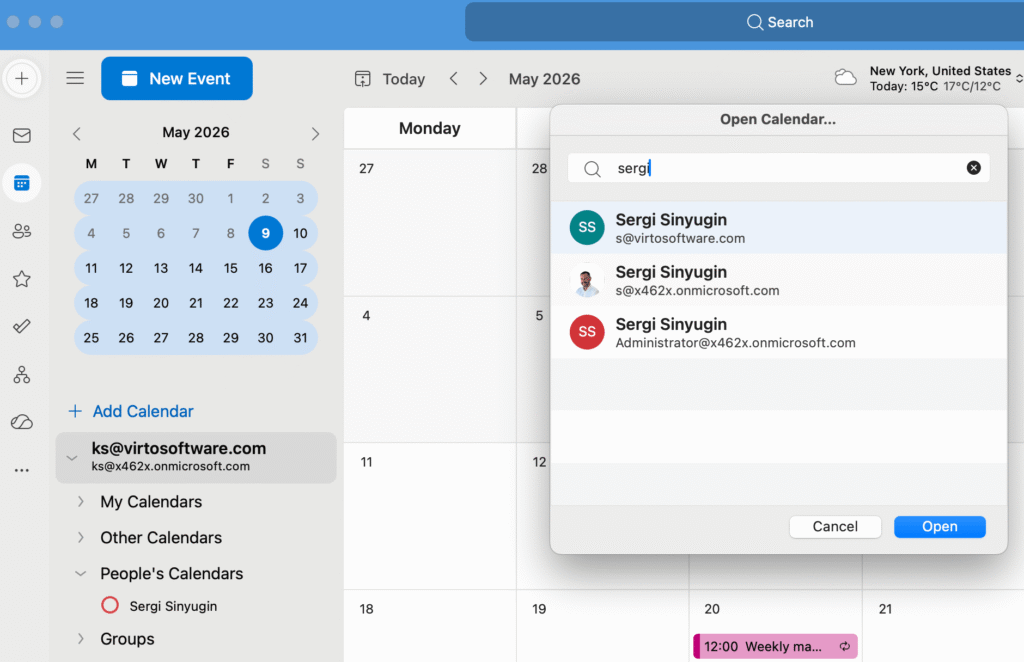
Pic. 2. Opening a shared calendar in Outlook for Mac.
Outlook on the web (OWA)
- Sign in at outlook.office.com and open Calendar.
- In the left pane, click Add calendar.
- Choose Add from directory.
- Type the person’s name or email, select the right account if prompted, and click Add.
- Use the checkbox next to the calendar name to show or hide it. Right-click the calendar for color and rename options.
If you frequently switch between several shared calendars, group them under a custom label (right-click the People’s calendars folder → New calendar group). This keeps the left pane navigable when you have ten or more shared calendars.
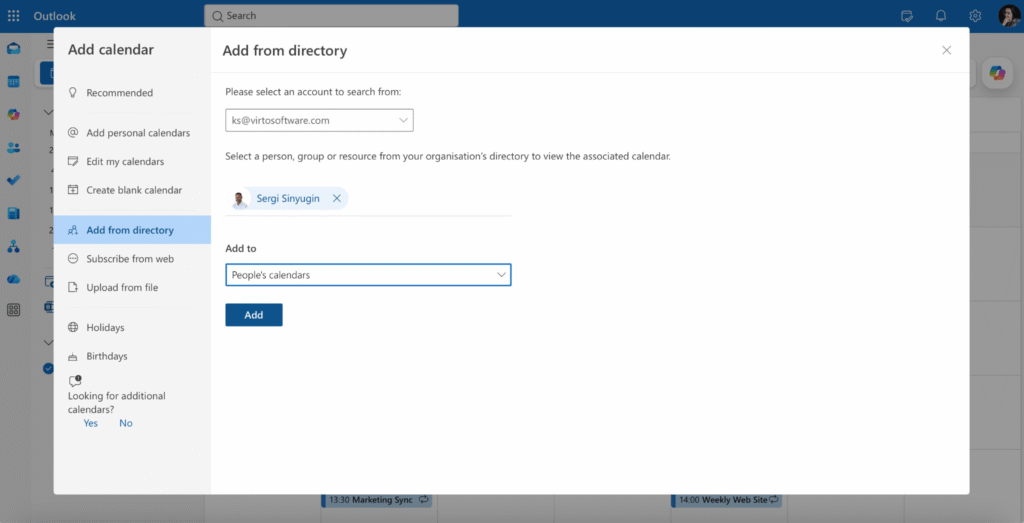
Pic. 3. Adding a colleague’s calendar from the directory in Outlook on the web.
Outlook Mobile (iOS and Android)
The Outlook mobile app supports viewing calendars that have already been shared with you, but the request flow happens on the web or desktop.
- Open the Outlook app and tap Calendar at the bottom.
- Tap the menu icon in the top-left, then tap the calendar icon (Add shared calendars).
- Search for the colleague and tap the plus icon next to their name.
- Return to Calendar — the shared calendar appears in the list and can be toggled on or off.
Mobile cannot send a sharing request. If you see no results, ask the owner to share the calendar from desktop or OWA first.
To remove a shared calendar later, swipe left on its name in the calendar list (iOS) or long-press and tap Remove (Android). The colleague’s sharing permission is unaffected — you only remove the local view.
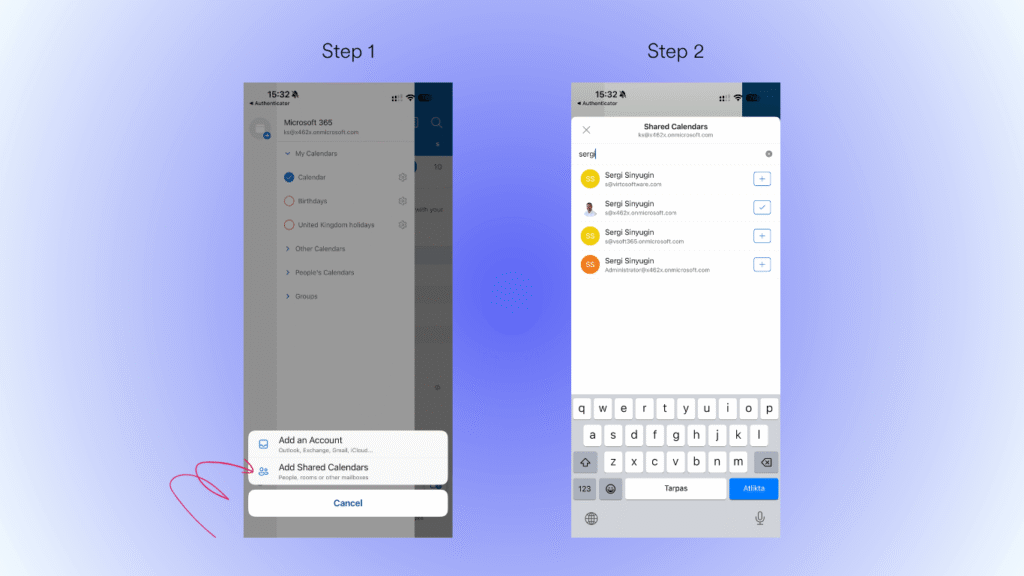
Pic. 4. Adding a shared calendar in the Outlook mobile app.
2. Request access to someone’s calendar
If you cannot see a calendar in the directory, or you see only Free/Busy when you need full details, you need to request access. Outlook supports three paths: request directly from the directory, ask the owner to share, or escalate to IT.
Send a request from Outlook on the web or New Outlook
- Open Calendar and click Add calendar in the left pane.
- Click Add from directory and type the colleague’s name.
- If permission is missing, the Add button changes to Request access. Click it.
- Outlook opens a pre-filled email. Add a short note explaining the level of access you need (busy only, full details, or edit), then click Send.
- When the owner approves, the calendar appears automatically under People’s calendars.
What the calendar owner needs to do
Send these steps to the calendar owner if they are not sure how to share access.
- Open Outlook on the web or New Outlook and go to Calendar.
- Click Settings (the gear icon) → Calendar → Shared calendars.
- Under Share a calendar, choose the calendar to share.
- Type the recipient’s email and select a permission level — Can view when I’m busy, Can view titles and locations, Can view all details, or Can edit.
- Click Share. The recipient gets an invitation email; once they accept, the calendar appears in their list.
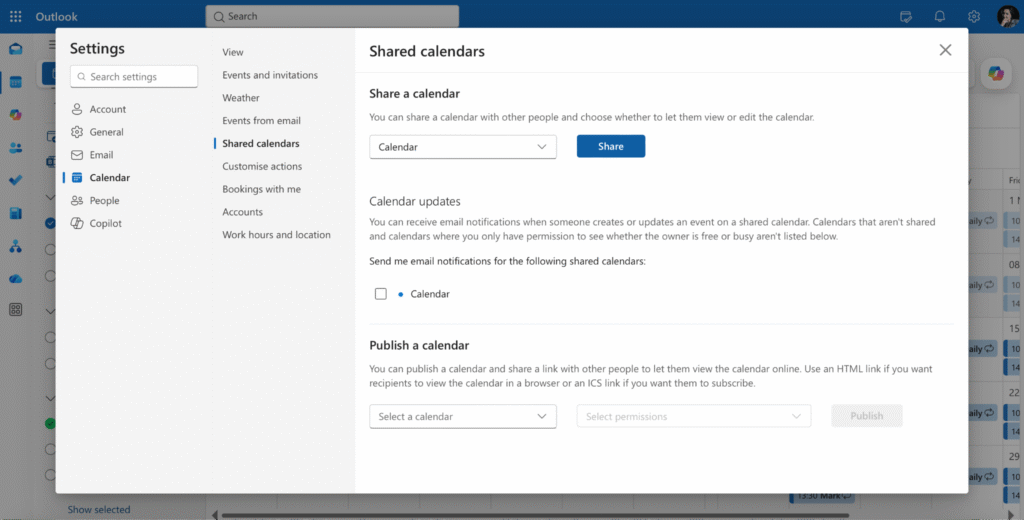
Pic. 5. The owner shares their calendar from Settings → Calendar → Shared calendars.
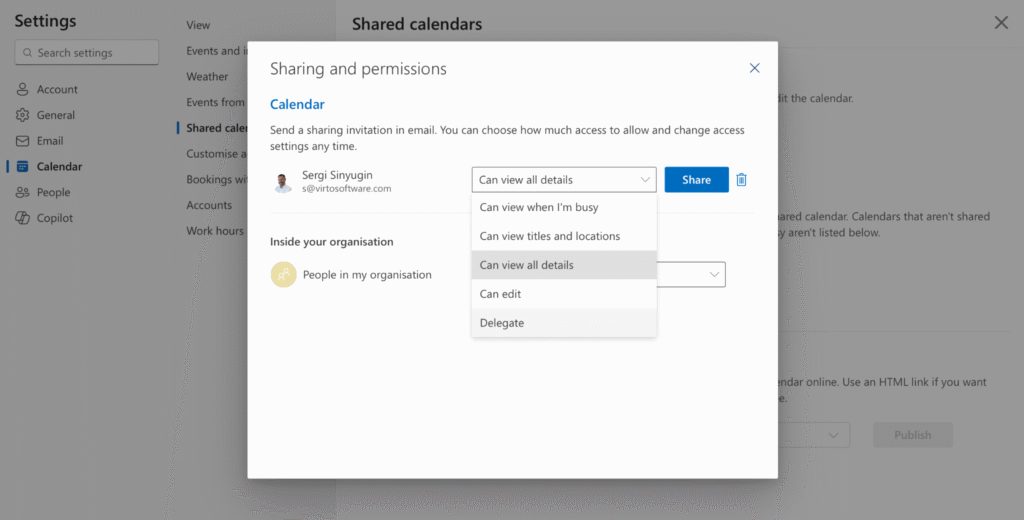
Pic. 6. To delegate full mailbox-level rights (including sending meeting responses), the owner chooses to delegate in the drop down menu next to the person they choose.
Ask your IT administrator
Some organizations restrict directory sharing or hide the Request access button entirely. If your tenant blocks self-service requests, contact the helpdesk and ask them to either grant calendar permissions through the Exchange admin center or enable directory sharing for your group. This is also the right path when you need access to a shared mailbox calendar that is not tied to a single user.
3. Check availability without opening the calendar
When you only need to find a free time slot, you do not have to add the colleague’s calendar at all. Outlook’s Scheduling Assistant reads free/busy data for anyone in your organization, even when their calendar is not shared with you.
Scheduling Assistant (recommended)
- In Calendar, click New event (or New Meeting in classic Outlook).
- In the new event, click Scheduling Assistant at the top.
- Add the attendees in the Required or Optional fields.
- The grid shades each attendee’s busy times. White columns are when everyone is free.
- Drag the time selector or use the Suggested times pane to pick a slot, then click Send.
Scheduling Assistant respects privacy — you only see Busy/Free/Tentative/Out of office, never event details, unless the calendar is shared with you.
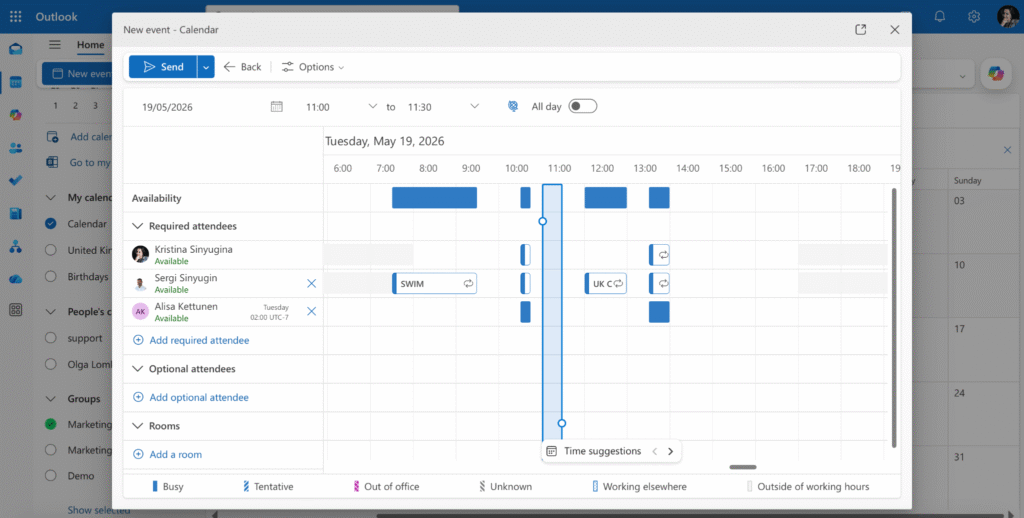
Pic. 7. Finding a free slot using Scheduling Assistant.
Free/Busy in Microsoft Teams
Teams pulls the same free/busy data from Exchange, so you can check availability without opening Outlook. In a chat or channel, type @ followed by the colleague’s name and hover over their card — the status icon shows current availability (Available, Busy, In a meeting, or Out of office). For full scheduling, open Calendar in Teams and click New meeting, then switch to Scheduling Assistant. The grid behaves exactly like the one in Outlook.
Keep in mind that Teams cannot show event details — only the same Free/Busy/Tentative blocks Outlook surfaces. For a full guide to Teams calendars, including channel calendars and shared team calendars, see how to view someone’s calendar in Teams.
4. Outlook calendar permission levels
Outlook offers six effective permission levels, from completely private to full delegation. Choose the lowest level that still lets the recipient do their job — most teammates only need busy or titles-and-locations.
| Permission level | What the recipient sees | When to use |
| Not shared | Nothing — the calendar stays private. | Default for personal calendars. |
| Can view when I’m busy | Free/busy blocks only, no event details. | Basic scheduling and external collaborators. |
| Can view titles and locations | Event title and location, no body or attendees. | Teammates coordinating day-to-day work. |
| Can view all details | Full event details including notes and attendees. | Managers, executive assistants, close collaborators. |
| Can edit | Full read access plus the ability to create, change, or delete events. | Delegation, shared team calendars. |
| Delegate | All edit rights plus the ability to send and respond to meeting requests on the owner’s behalf. | Executive assistants who manage the owner’s mailbox. |
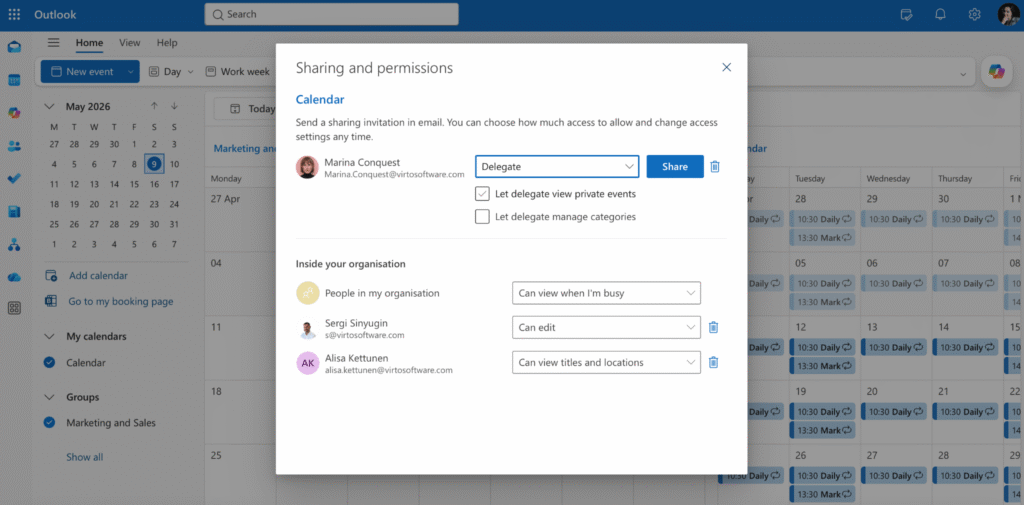
Pic. 8. Sharing and permissions panel — adjusting access levels per person.
Tip: open the calendar’s Sharing and permissions panel to review and revoke permissions. You can also set different levels for different people on the same calendar.
5. Common problems and fixes
‘Request access’ button is missing in OWA
This usually means your tenant blocks directory sharing requests, or the colleague is in a different mail organization. Ask the owner to share their calendar directly from Settings → Calendar → Shared calendars, or contact IT to enable cross-tenant sharing.
Error when adding the calendar
Common error codes and fixes:
- ‘You don’t have permission’ — the colleague has not shared their calendar with you. Send a request as described in Section 2.
- ‘Cannot find the user’ — check that you searched in the correct directory (the colleague may be in a different tenant or using a personal account).
- ‘Could not be opened’ — usually a transient sync issue. Restart Outlook, or in OWA refresh the page and try again.
Calendar shows only ‘Busy’ with no details
You have Can view when I’m busy permission. Ask the owner to upgrade you to Can view titles and locations or Can view all details using the steps in Section 2.
Calendar was added but appears empty
Either the colleague has no events in the visible date range, or your permission level hides details. Switch to Month view to confirm there is data, then verify your permission level in the calendar’s properties.
Shared calendar disappeared after switching to New Outlook
New Outlook re-syncs shared calendars when you sign in. Go to Calendar → Add calendar → Add from directory and re-add the colleague. The original sharing permission is still in place; you only need to recreate the local view.
Events show the wrong time zone
Outlook stores events in UTC and converts them to your local time. If a shared calendar’s events look offset, check that both your account and the owner’s account use the correct time zone in Settings → General → Language and time. On classic Outlook, also verify File → Options → Calendar → Time zones.
Mobile shows different events than desktop
The Outlook mobile app caches a smaller window of events than desktop. Pull down to refresh, then check Settings → Mail accounts → Sync calendar to confirm the shared calendar is actually selected for sync. If a calendar still does not appear, remove and re-add the account.
6. Going further with Virto Calendar
Virto Calendar App is a Microsoft 365–native overlay that sits on top of Outlook and SharePoint. It is built for teams that need to see many calendars at once — multiple departments, projects, or external sources — without losing the security model of Microsoft 365.
Four things Virto Calendar adds to the native experience:
- Multi-source overlays: combine Exchange, Outlook, SharePoint lists and libraries, Planner, Google Calendar, iCal, and Apple Calendar in one consolidated view, with a colour-coded layer per source.
- Granular permissions: assign view rights per calendar layer, not per mailbox, and audit who saw what. Useful when one team needs to see a project schedule without seeing the underlying mailboxes.
- Centralised group calendar management: surface multiple Microsoft 365 group calendars in a single dashboard, so members of many groups don’t have to toggle between calendars to find a meeting.
- Enterprise data residency: calendar data stays in your Azure tenant — nothing leaves your cloud, which simplifies compliance reviews.
Virto Calendar is built on top of the Microsoft 365 security model — it never overrides existing Exchange permissions, so anything a user could not see in Outlook stays hidden in Virto Calendar too. That makes it a low-risk way to give large teams a single pane of glass without changing your admin policies.
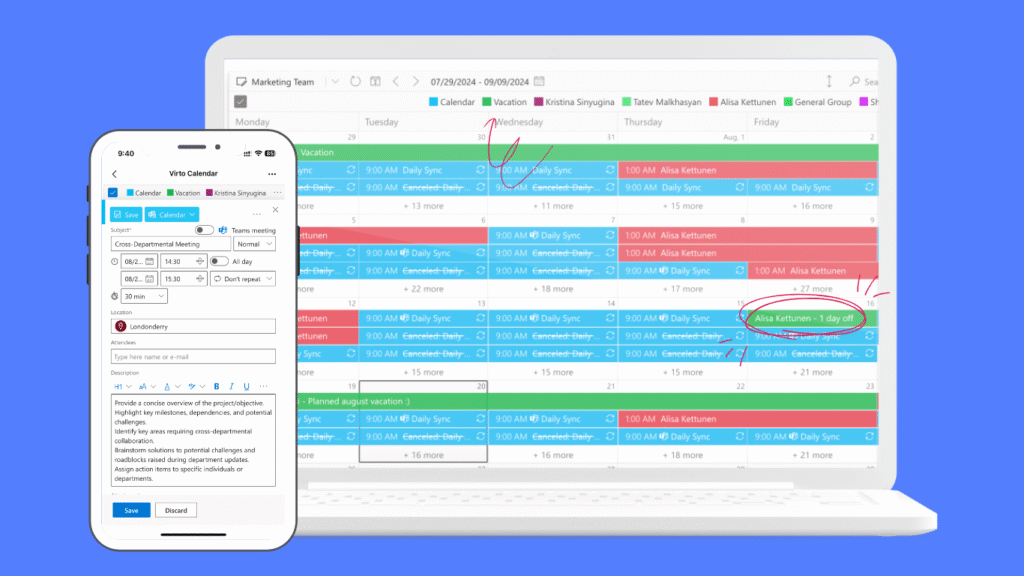
Pic. 9. Virto Calendar overlay combining several calendars in a single view.
If your team currently juggles five or more shared calendars, book a quick demo or start a free trial to see the overlay in your own tenant.
7. FAQ
How do I view someone’s calendar in Outlook?
In New Outlook or Outlook on the web, open Calendar, click Add calendar → Add from directory, search for the person, and click Add. In classic Outlook for Windows, use Home → Add Calendar → From Address Book. If you do not have permission yet, Outlook will offer to send a sharing request.
How do I request access to someone’s Outlook calendar?
Open Calendar in OWA or New Outlook, click Add calendar → Add from directory, and search for the person. If permission is missing, the Add button becomes Request access. Click it, type a short note, and send. The owner gets an email and approves the level of access you asked for.
Can I see a colleague’s calendar without them sharing it?
You can see free/busy availability through Scheduling Assistant or Microsoft Teams without explicit sharing — that data is published organization-wide by default. Event titles, attendees, and notes only become visible after the owner shares the calendar with at least Can view titles and locations.
How do I check someone’s availability in Outlook without viewing their calendar?
Create a new event, open Scheduling Assistant, and add the person as an attendee. The grid shades their busy times. White columns are when everyone is free. You do not need any sharing permission to see free/busy.
What is the difference between sharing and delegating an Outlook calendar?
Sharing grants read or edit access to the calendar itself. Delegation also lets the delegate send and respond to meeting invitations on the owner’s behalf, and is set up under Settings → General → Delegation. Use sharing for visibility; use delegation when an assistant needs to act for the owner.
Merge all calendars in one place
Try Virto Calendar to Sync all events in Teams
To deepen your understanding of Outlook calendars, we recommend the following resources:
Official Microsoft Documentation: