




SharePoint Wiki
Customer Case: Displaying Project Name on Virto Kanban Cards
Learn more about Virto Kanban Board App and how to display project name, and begin your fully free 30-day trial!
86 posts
Learn more about Virto Kanban Board App and how to display project name, and begin your fully free 30-day trial!

Discover how to process requests from your SharePoint public site with VirtoSoftware. Learn how to streamline your customer service processes with ease!

Discover a use case: broadcasting company collects the latest information from various sources in a single place by merging several SharePoint list updates.

Learn how to create SharePoint forms with color-coded tabs for better organization and navigation. Improve user experience and efficiency with this tutorial.

Learn how to add "Next" buttons to SharePoint forms with tabs using Virto Forms Designer. Improve form navigation and user experience!
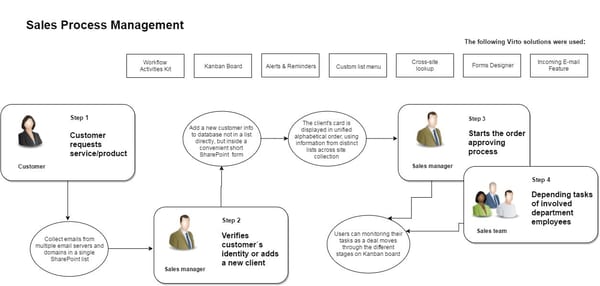
Automate your sales management process with Virto tools for lead management, pipeline management, sales order processing, and more.

Discover how automation tools can simplify and optimize your business operations, including inventory and contract management, production processes, etc.

Discover how IT department automation can help your organization save time, reduce costs, and increase productivity. Learn more on our blog.

Automate HR tasks with SharePoint HR Management Solution. Organize employee data, leave and vacation requests, performance evaluation, and more.

Learn how SharePoint workflows, visual management, and automation can streamline your financial operations, reduce errors, and increase productivity.

Learn how to create and send beautiful SharePoint newsletters and alerts with ease using the versatile Virto SharePoint Alerts add-in.
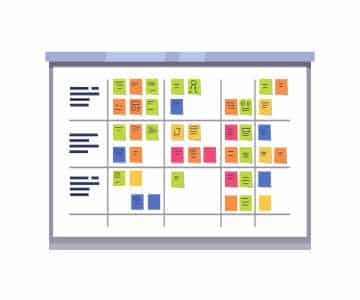
Learn how Kanban methodology, originally implemented in Toyota to improve manufacturing efficiency, became a popular agile framework in IT.
